
Reset your Proton Account password
- Leitura
- 8 min
- Categoria
- Password reset
If you lose your password, there are multiple recovery options that let you back into your Proton Account.
Depending on which one you use, you may need to recover your account data afterward. Learn more about account and data recovery
- Before you get started
- Reset your password
- What to do after resetting your password
- Password reset and data recovery explained
- Password reset and two-password mode
- Lost two-factor authentication (2FA) device
- If you received a password reset email you didn’t request
Before you get started
- If you lost your password but you’re still signed in to Proton, you can request a password reset from your account settings. How to request a signed-in password reset
- If you know your password and just want to change it, you can also do this in your account settings. How to change your password
Reset your password
If you’re locked out of your Proton Account, you’ll need to have one of the following recovery options enabled:
Reset your password with email verification
- Go to the Proton sign-in page. Select Trouble signing in? then select Forgot password from the menu.

2. Enter your email or username. Select Next.

- We’ll send a verification code to the recovery email address on your account. Enter the code and select Verify.

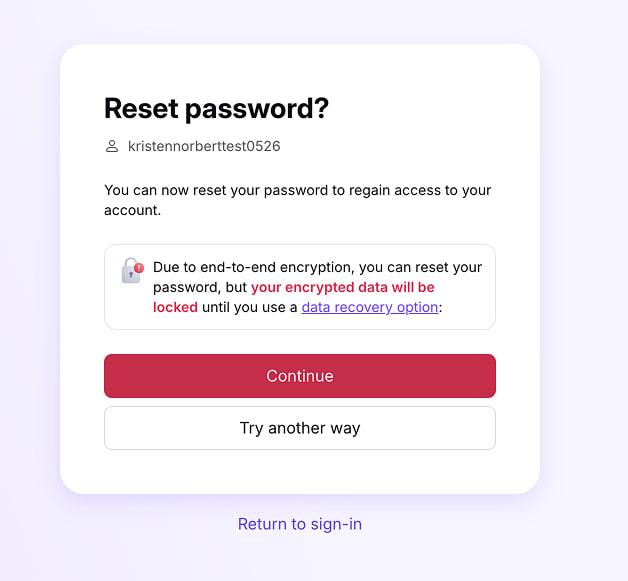
- Read the confirmation message carefully. If you’re sure you want to continue, select Continue.
- Create a new strong password, and enter it in the New password and Confirm password fields. Select Continue.

That’s it. You can now sign in to Proton with your new password.
Once you sign in, your data (like emails, files, and calendars) may be locked. Learn how to recover your account data after a password reset
Reset your password with SMS verification
- Go to the Proton sign-in page. Select Trouble signing in? then select Forgot password from the menu.
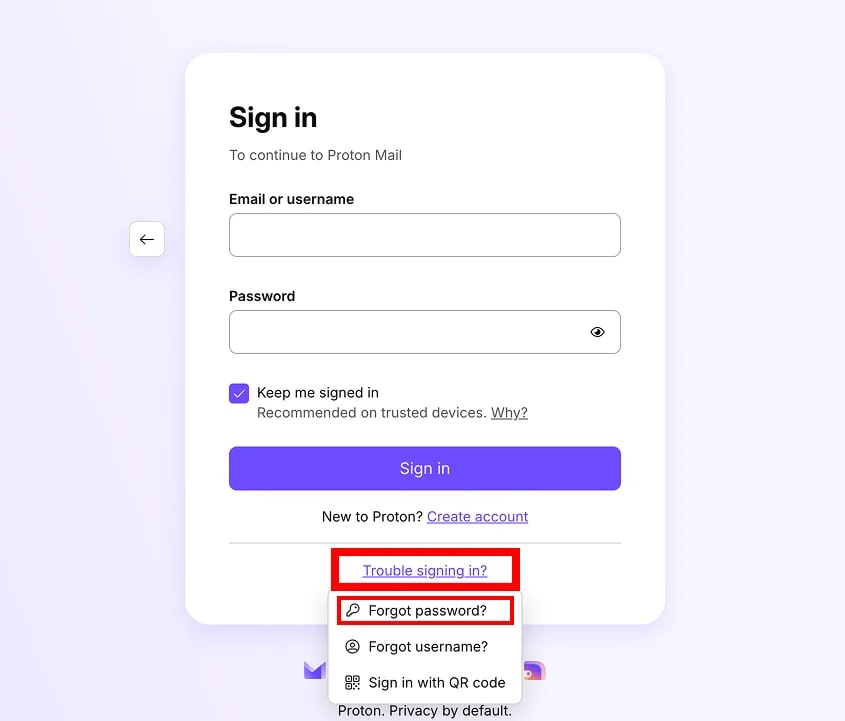
2. Enter your email or username. Select Next.
- Click Send code.

- If you have email recovery enabled, you may be prompted to try that first. If you don’t want to use email recovery, clicking Try another way will bring you to the SMS recovery page.
- If you can’t access your recovery phone, click Try another way to see if another recovery option is available.
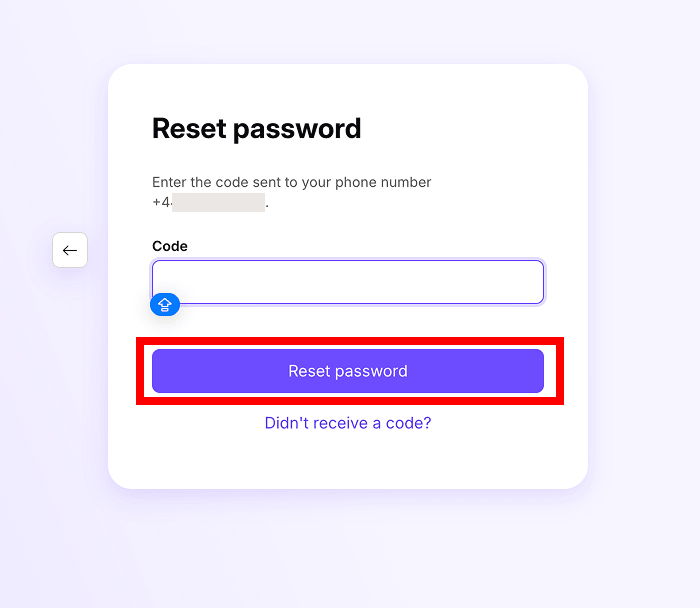
- We’ll send a verification text to the recovery phone number on your account. Enter the code and select Verify.
- Read the confirmation message carefully. If you’re sure you want to continue, select Continue.

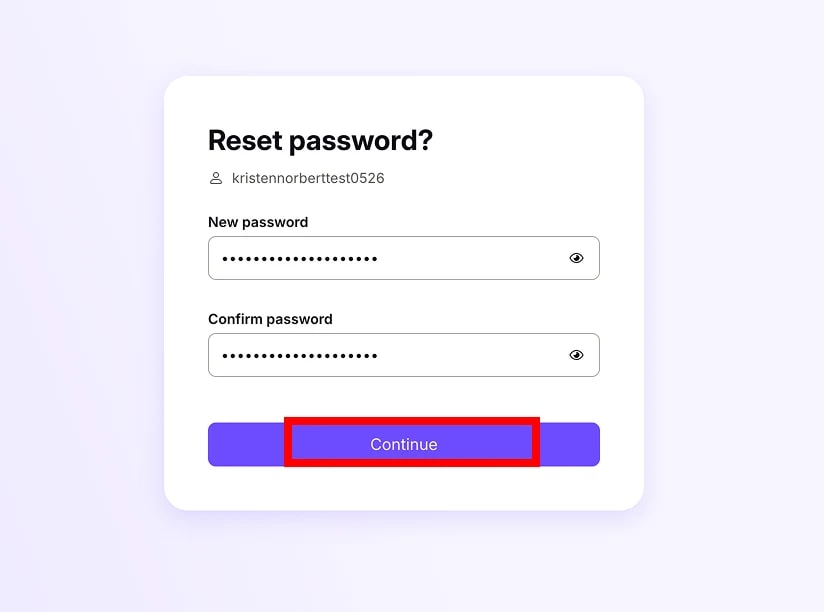
- Create a new strong password, and enter it in the New password and Confirm password fields. Select Continue.
That’s it. You can now sign in to Proton with your new password.
Once you sign in, your data (like emails, files, and calendars) may be locked. Learn how to recover your account data after a password reset
Reset your password with your recovery phrase
- Go to the Proton sign-in page. Select Trouble signing in? then select Forgot password from the menu.
2. Enter your email or username. Select Next.
3. Enter your 12-word recovery phrase. Select Reset password.

- If you have email or SMS recovery enabled, you may be prompted to try those methods first. Clicking Try another way will bring you to the recovery phrase page.
- If you don’t have your phrase, click Try another way to see if another recovery option is available.
4. Select Continue.
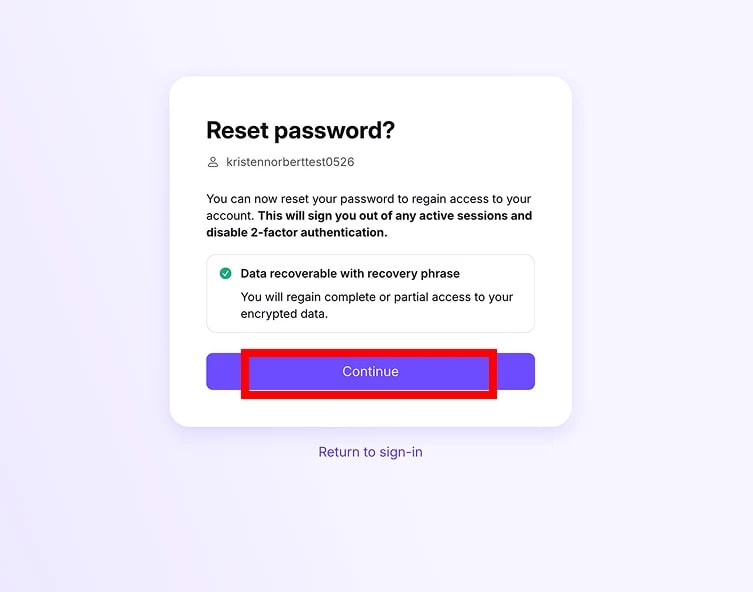
5. Create your new password. Select Continue.

That’s it. You can now sign in to Proton with your new password. Your account data is automatically restored.
Reset your password with emergency access
- Go to the Proton sign-in page. Select Trouble signing in? then select Forgot password from the menu.
2. Enter your email or username. Select Next.
- If you’ve enabled emergency access for your account, click Yes.

- If you have other recovery options enabled, you may be prompted to try them first. If you don’t want to use those methods, click Try another way until you reach the emergency contacts page.
- Follow the steps to get one of your contacts to change your password for you.

- Ask them to sign in to their Proton Account in the browser, and go to Settings → All settings → Recovery → Emergency access→ People who trust me.
- From there, they can request emergency access to your account by clicking Request access.
- Depending on your settings, they may receive access immediately, or after a designated waiting period.
- Once access to your account has been granted, they can access your Recovery settings and change your Proton Account password for you.
Once you’re back into your account, we recommend changing your password again, so that only you know it.
What to do after resetting your password
Once you’re signed back in, it’s a good idea to make sure you’re still covered in case you get locked out again.
- Check that your recovery options are still active. Some options (like recovery phrase) can only be used once — so you’ll need to download a new one.
- Consider enabling additional recovery options. Ideally you should have multiple ways to recover your account and your data.
To check the status of your recovery options and get an overview of your account security, check out our account safety review page.
Password reset and data recovery explained
Proton uses zero-access encryption. Nobody can access your data (like emails, calendars, saved passwords, and files) without your password — not even us.
So if you get locked out of your account and need to reset your password, you also need some form of backup encryption key to unlock the data that was on your account before the reset.
A recovery phrase doubles as an encryption key, so it unlocks your account and decrypts your data at the same time.
But if you recover your account by email or SMS verification, your data remains encrypted. Fortunately, there are a few different ways to unlock your data after using these recovery options.
Password reset for two-password mode
All recovery options work for two-password mode — even if you lose both passwords.
A password reset automatically reverts your account to one-password mode. Once you’re back into your account, you can re-enable two-password mode in Settings.
Lost two-factor authentication (2FA) device
Learn how to reset your 2FA details if you lose your authentication device
If you received a password reset message you didn’t request
In general, you can safely ignore the message. It doesn’t mean your account has been compromised, and it doesn’t indicate a data leak.
Another Proton user may have requested a password reset for the wrong email address. If it was a spammer trying to reset your password, they can’t change your password without signing in to your recovery email account.
If you keep getting password reset messages, here’s what you can do to secure your account:
1. Change your recovery email address
- Especially if it has the same username as your Proton Mail address (for example, eric.norbert@gmail.com and eric.norbert@proton.me).
- If your recovery email address is a Gmail or Proton Mail address, you can use plus addressing or hide-my-email aliases to create a variant that’s harder to guess.
2. Enable two-factor authentication (2FA)
- Two-factor authentication adds another layer of verification that makes it harder for someone else to reset your password.