
Device data backup
- Leitura
- 4 min
- Categoria
- Account and data recovery
Device data backup is a data recovery method that lets you restore access to emails, calendars, contacts, and any other encrypted data on your account after a password reset by signing in on a trusted device.
To fully secure your account against password loss, you should also enable at least one password reset method.
In this article
- How it works
- How to use device data backup
- Recover your data with device data backup
- Is device data backup safe?
How it works
Device data backup works by saving a recovery file on your trusted devices. If you lose access to your data after a password reset, signing in to your Proton Account on a trusted device will activate the recovery file and recover your data.
- A trusted device is any device on which you enabled the “keep me signed in” feature.
- When enabled on a Proton web app, the recovery file is saved to your browser’s web storage.
Device data backup unlocks your account data, but it can’t reset your password.
Learn how Proton account recovery works
How to use device data backup
Enable device data backup
Device data backup is enabled by default. Here’s how to re-enable the feature if you turned it off previously:
- Sign in to account.proton.me and open your account settings.
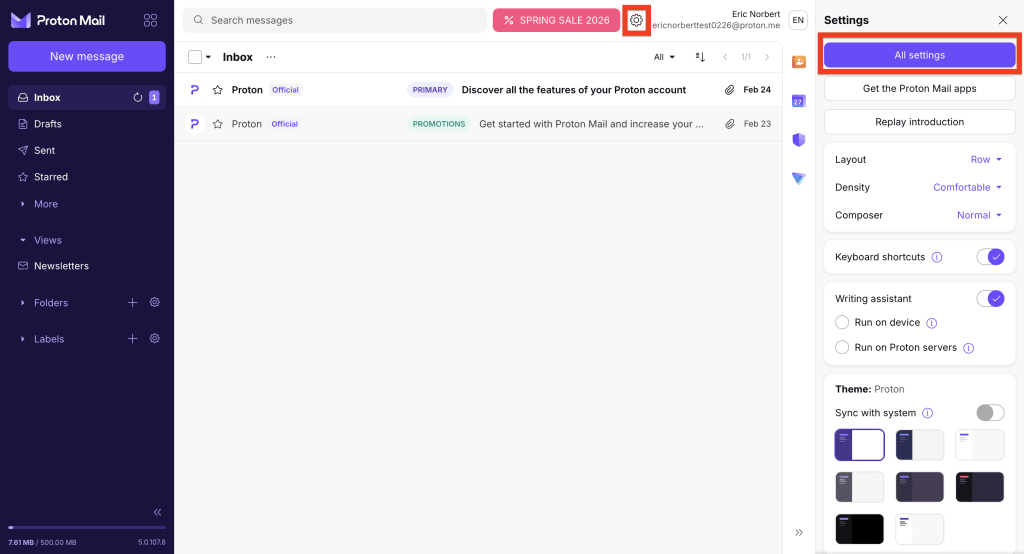
- Select Recovery from the sidebar and scroll to Device data backup.

3. Turn on the Allow recovery using a trusted device toggle.
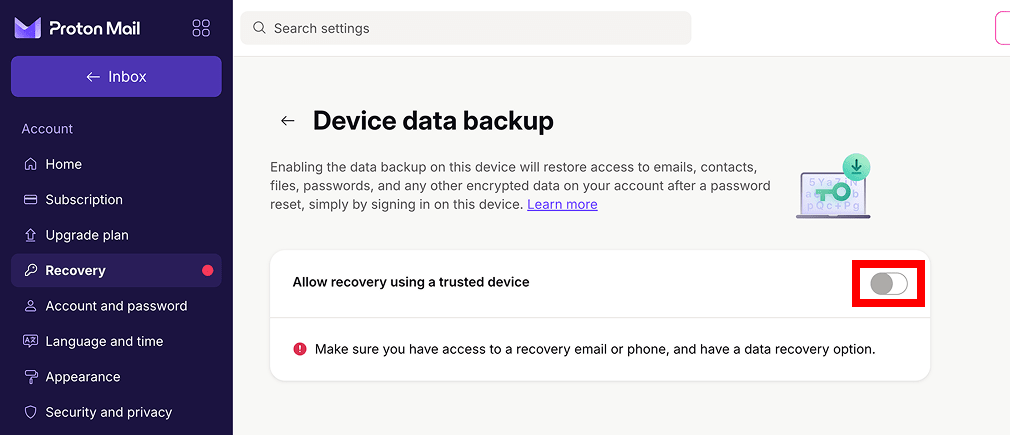
You can now recover your data by signing in on a trusted device.
Add a trusted device
When device data backup is enabled, signing in to your Proton Account with the Keep me signed in feature automatically adds that device and browser to your trusted devices.
- Go to account.proton.me/signin.
- Enter your username and password.
- Make sure Keep me signed in is checked, then click Sign in.
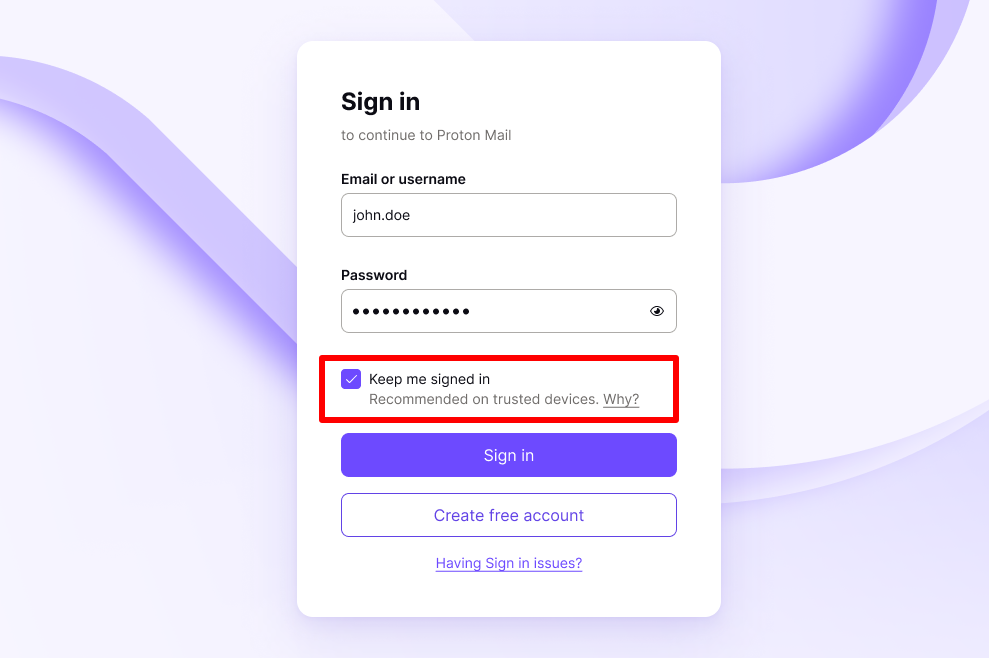
That’s it. A recovery file has been automatically saved to your browser’s web storage, and it can now be used for device data backup.
Remove a trusted device
This deletes the recovery file from your browser’s storage, so it can no longer be used for device data backup.
- Sign out of your Proton Account on the device and browser you want to remove.
- You’ll see a pop-up about recovery-related information. Check the box that says Delete recovery-related information.
- Click Sign out to confirm.
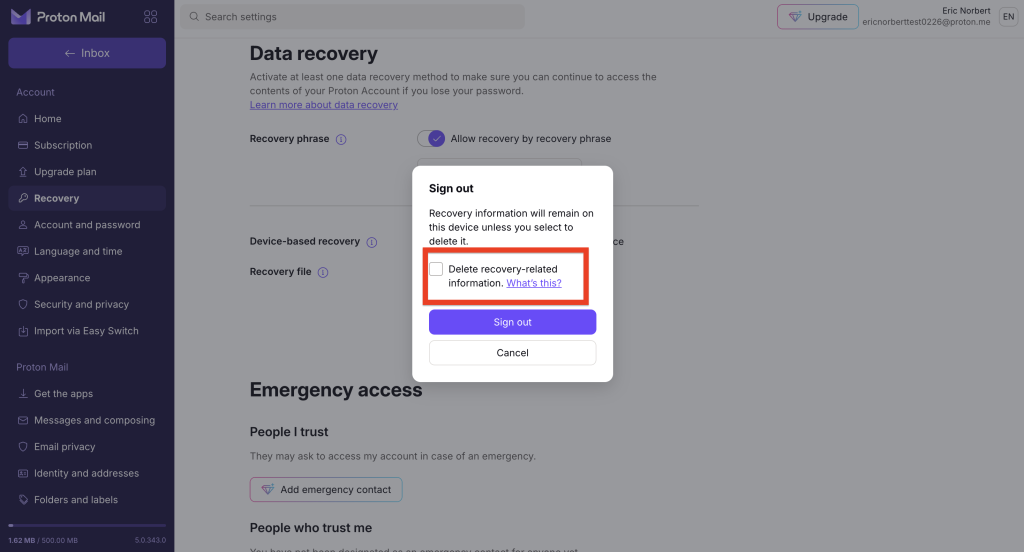
All done. The browser has been removed from your trusted devices.
Disable device data backup
There are two ways to disable this feature:
Disable device data backup without voiding recovery files
Device data backup is enabled by default. Here’s how to re-enable the feature if you turned it off previously:
- Sign in to account.proton.me and open your account settings.
- Select Recovery from the sidebar and scroll to Device data backup.

3. Turn the Allow recovery using a trusted device toggle Off.

4. Read the confirmation message. If you’re sure you want to continue, select Disable.

Device data backup is now Off. If you turn the feature back on, your trusted devices will be re-enabled automatically.
Disable device data backup and void all recovery files
This will disable device data backup, remove all trusted devices, and void any recovery files you saved manually.
1. Sign in to account.proton.me and open your account settings.
2. Select Recovery from the sidebar.

3. Scroll to Data recovery options and click Recovery file.
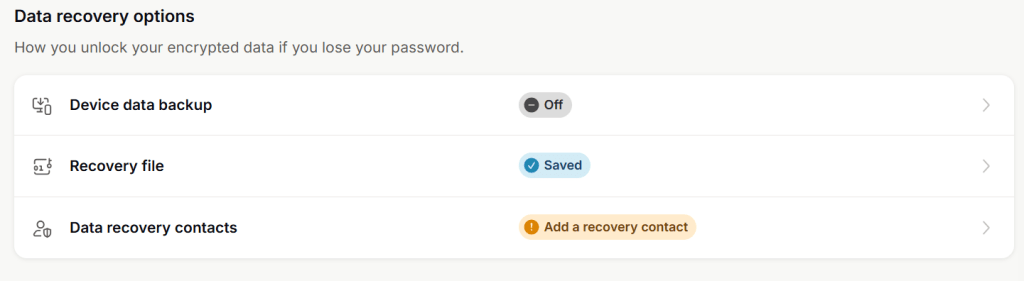
4. Click Void all recovery files.

5. Read the confirmation message. If you’re sure you want to continue, click Void.

- Enter your password to confirm.
Recover your data with device data backup
If you reset your password with email or SMS recovery and can’t access your account data, just sign in to any Proton web app on a trusted device.
This will decrypt your data, giving you full access to your emails, calendars, contacts, files, and passwords.
Make sure you use the same browser where you previously signed in (and checked “Keep me signed in”).
Is device data backup safe?
Yes. Your Proton Account OpenPGP encryption keys are stored on your device in a recovery file. The recovery file is encrypted using a randomly generated symmetric encryption key. We call this derived key the recovery secret, which is uploaded to our servers.
When you unlock your account using device data backup, the recovery secret is downloaded to your device and used to decrypt your Proton PGP keys. At no point does Proton have access to your account keys.
If you delete the recovery secret from our servers (by removing a trusted device), the recovery file becomes completely useless.